If you’re making TikTok, Reels, or YouTube Shorts, you already know CapCut. It’s the most popular free video editor on mobile, used by millions of creators. But here’s the secret most people miss: adding transparent troll face and meme overlays can turn a standard edit into a viral, high-retention video. Whether you’re doing phonk edits, reaction clips, or gaming highlights, a well-placed troll face PNG makes everything funnier and more engaging.
In this step-by-step guide, I’ll show you exactly how to import, position, animate, and blend transparent troll face overlays in CapCut — using completely free HD assets from Troll Face Download. No green screen removal needed, no complex masking — just drop, resize, and go.

The classic troll face, available for free as a transparent PNG. Artist: Sharjeel
Why Use Transparent Troll Face Overlays Instead of Green Screen Clips
Many video editors waste time downloading low-resolution green screen videos of the troll face and then struggling to key out the green. It often leaves a messy edge or a green halo. A high-quality transparent PNG troll face completely solves this. You can place it directly on top of any video clip without any chroma keying. It stays crisp, clean, and blends instantly — saving you hours of editing frustration.
Our library at Troll Face Download has over 95 transparent PNG variants: classic trollface, red‑eyed devil, blue emojis, skull memes, and rage comic faces — all pre-cut and ready to drag into CapCut.

Blue Sly Emoji
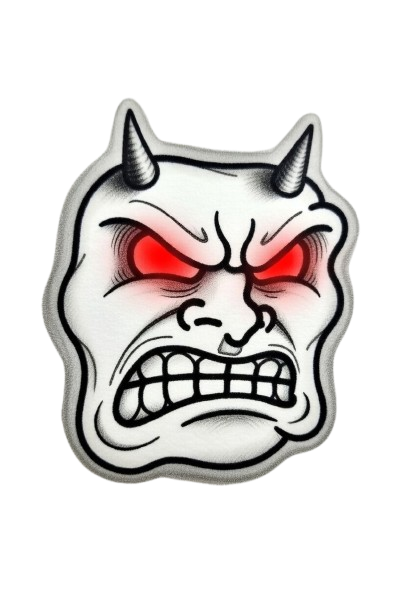
Devil Troll Face
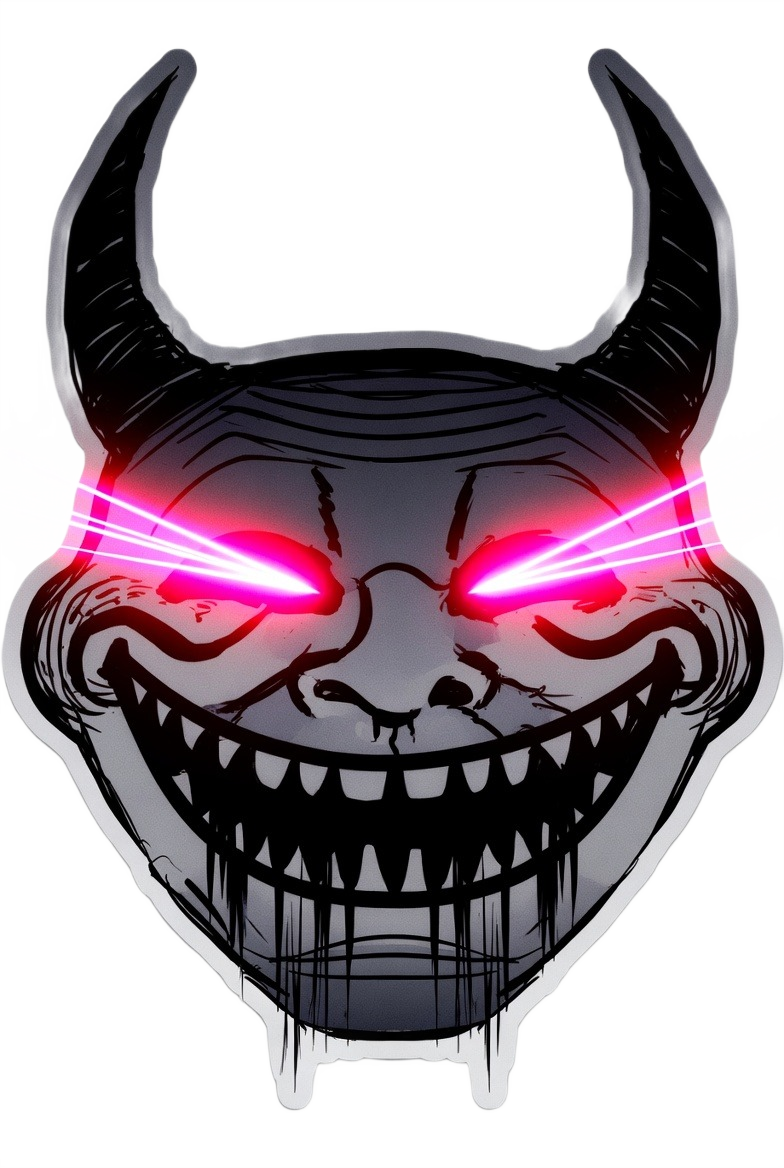
Demon Skull
Step-by-Step: Adding a Troll Face Overlay in CapCut (iOS & Android)
Step 1: Download Your Favorite Troll Face PNGs
Head to our complete troll face collection. Use the filters (“Troll Faces,” “Blue Emojis,” “Skull Memes”) to find the exact expression you want. Tap any image to open it, then long‑press and choose Save Image (or use the Download button). The PNG will save directly to your phone’s gallery with a transparent background intact.
Step 2: Open CapCut and Import Your Base Video
Launch CapCut, tap New Project, and select the video clip you want to add the meme to. It can be a gaming clip, a reaction video, a phonk edit, or anything else. Once it loads on the timeline, you’re ready to overlay.
Step 3: Add the Troll Face PNG as an Overlay
Tap the Overlay button (it looks like a layered square, usually in the bottom menu). Choose Add overlay → From Photos. Select the troll face PNG you saved. CapCut will place it above your main video track automatically. Don’t worry about the size yet.
Step 4: Resize, Position, and Rotate
Pinch to resize the troll face and drag it to the perfect spot — corner of the screen, center, or near the subject’s face. You can also use the Rotate tool to tilt the image for a more dynamic look. Many phonk edits use a slight 15‑degree tilt for a chaotic vibe.
Pro tip: Use the Mask feature (found in the overlay editing options) to feather the edges or create a custom shape. Though the PNG already has a transparent background, a subtle circular mask can help it blend with dark backgrounds.
Step 5: Animate the Troll Face (Keyframes)
This is where the magic happens. Tap on the overlay clip, then tap the Keyframe icon (diamond with a plus sign). Move the playhead a little forward, reposition or resize the troll face slightly, and CapCut will create smooth motion automatically. For a “shaking” or “glitch” effect, add several keyframes with tiny position changes in rapid succession.
Step 6: Add Blend Modes and Effects
Still on the overlay, tap Blend. Experiment with these modes to make the troll face integrate perfectly with your video:
- Normal – Best when you need the troll face to stand out sharply.
- Overlay or Soft Light – Creates a ghost‑like, haunting appearance (perfect for horror edits).
- Screen – Good for bright, glowing blue emoji overlays on dark backgrounds.
Additionally, apply a Glow or Vignette effect from the Effects tab to make the troll face pop even more.
Step 7: Export at High Resolution
Once satisfied, tap the Export button (top‑right). Choose 1080p or 4K and 60fps if available. The transparent background of your PNG will remain perfectly crisp, and the troll face will look like it was always part of the video.
CapCut Desktop (PC/Mac) Quick Guide
The process is almost identical on the desktop version of CapCut. Instead of saving to a phone gallery, download the PNG to your computer from our website. Then drag it directly onto the timeline above the main video. Use the Transform panel for exact positioning, and keyframe just like on mobile. The blend modes and effects are available in the right-hand panel.
The Best Troll Face Variations for Different Edit Styles
Not all troll faces are equal. Here’s a quick reference to help you pick the right asset for your CapCut project:
| Editing Style | Recommended Troll Face | Where to Get It |
|---|---|---|
| Phonk / Dark Edits | Blue Sly Emoji, Demon Skull, Red Eyes Devil | Scary Troll Faces |
| Funny Reaction Videos | Classic Trollface, Laughing Troll, Cool Story Bro | Main Collection |
| Gaming Highlight Edits | EZ PZ Gamer, Rage Quit, FAAAA Devil | Rage Comic Faces |
| Emotional/Sad Memes | Crying Red Eyes, Sad Skull, Blue Crying Emoji | Sad Troll Faces |
Common Mistakes to Avoid
- Using a JPEG instead of PNG. JPEGs don’t support transparency, so you’ll end up with a white or black box around the troll face. Always download the PNG format from our site.
- Ignoring export resolution. If your video is 1080p, make sure the overlay image is at least 600×600 pixels to avoid pixelation.
- Over‑animating. Too many keyframes can make the overlay look chaotic and distract from the content. Use subtle, short movements.
- Forgetting to mute the overlay audio. PNGs are silent, but if you accidentally imported a video file, it may carry unwanted audio. Always check the audio track.
Frequently Asked Questions
Yes, all our images are free for personal and commercial use. No attribution required, though a credit to Troll Face Download is appreciated. Artist: Sharjeel.
You don’t need the green screen feature at all. Our PNGs already have transparent backgrounds, so you can directly overlay them without chroma key.
Ensure you downloaded the original resolution image. If you compressed it accidentally, re‑download from the direct download button on our site. Also, check that your export settings are at least 1080p.
Ready to Level Up Your CapCut Edits?
Grab our complete pack of over 95 transparent troll face PNGs, including the blue emoji, skull, and scary variants. All free, all HD.
⬇️ Download Troll Face Overlay PackNo watermarks. Transparent backgrounds. Artist: Sharjeel.
With these steps, you can turn any video into a share‑worthy meme edit in under five minutes. Happy editing, and don’t forget to check out our Scary Text Generator if you need custom horror captions to go with your troll face overlays.